tBook Token Management

Starting Your tBook
Accessing funds in a tBook wallet using the Private Key
Prerequisites:
- A device with an internet connection.
- Solana-compatible wallet software (such as Sollet, Phantom, or Solflare). We will be using Phantom for these instructions.
Accessing Your Token Key
All tBooks come with a token management page which is available on the sidebar menu. Simply open this menu and be sure you want to remove your token and simply click the button at the bottom of the page to access the token key. Once clicked the token public and private address appear.
Steps to Using the Private Key:
- Install Phantom Wallet Software: If you haven't already, install Phantom.
- Open the Wallet: Launch the installed wallet software. If you're using a browser extension, click on the wallet icon in your browser toolbar to open it.
- Import Your Wallet: Look for an option that says "Import Wallet" or "Restore Wallet." This option allows you to add an existing wallet using the Private Key.
- Enter Private Key: When prompted, enter your wallet's Private Key. Be cautious while doing this, as anyone with access to your Private Key can control your funds.
- Set a Password: The wallet software may prompt you to set a new password for the imported wallet. Choose a strong, secure password and confirm it.
- Access Your Funds: Once the wallet is imported successfully, you will see your wallet's balance and transaction history. You can now send and receive funds using the wallet.
Moving Funds to a New Wallet Address
Because your tBook wallet has been on your computer and we cannot know the security of your computer, we recommend transferring the balance from the Phantom wallet to a different wallet by sending the money rather than importing it.
- Install another Phantom Wallet in a different browser following the steps above.
- Open the new Phantom Wallet: Ensure Phantom Wallet is open and you are logged in.
- Choose Solana Network and click on recieve button.
- You should see the following:
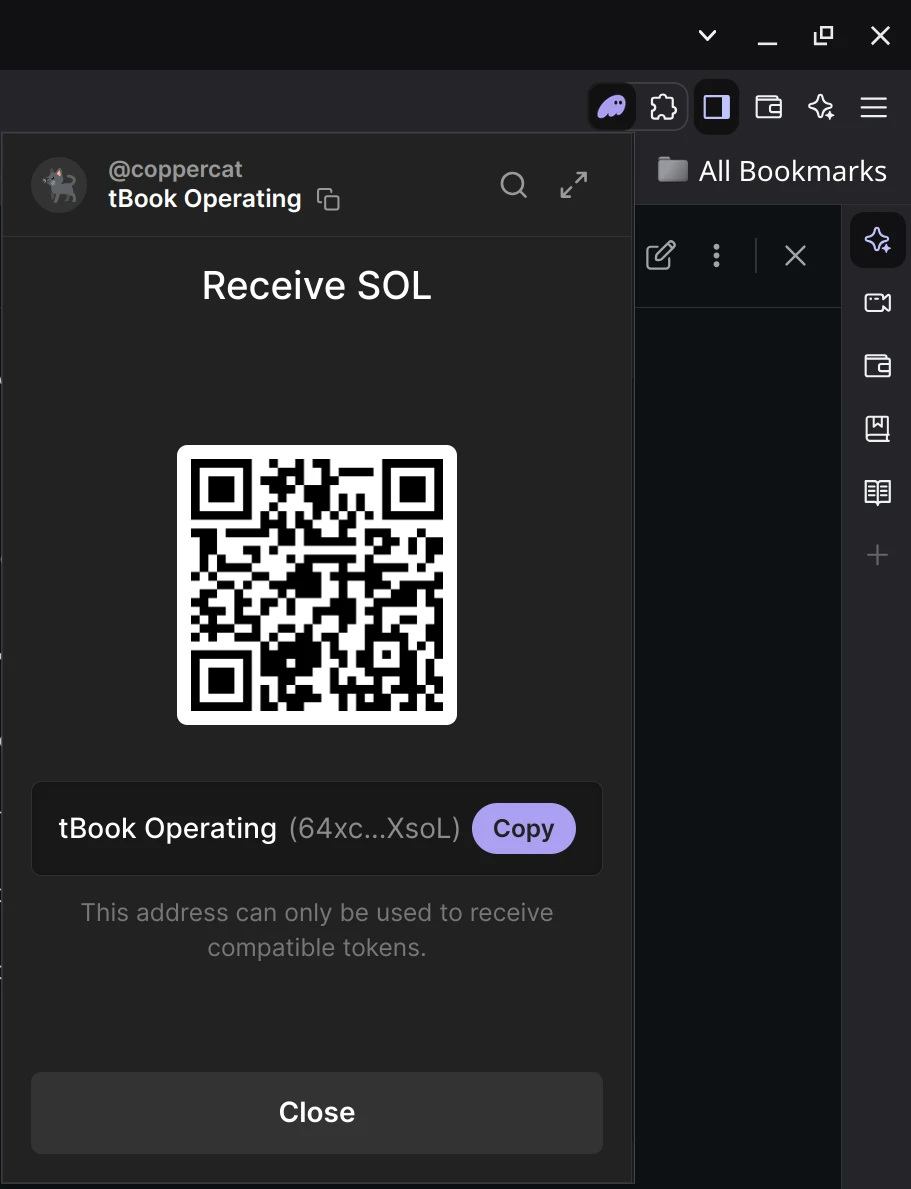
- Click copy.
- Go to the sending wallet that contains your token.
- Click on your token and click Send
- Enter Recipient’s Wallet Address: The address you copied from the recieving wallet. Double-check to avoid any errors.
- Enter Amount: Specify the amount you want to transfer. 1 token.
- Review and Confirm: Review the transaction details, including the transaction fee and estimated arrival time.
- Confirm the Transaction: Click on the "Confirm" button to initiate the transfer.
- Wait for Confirmation: Wait for the transaction to complete, which may take a few minutes to several hours depending on network congestion.
Tips:
- Check URLs: Ensure you are downloading wallet software from official websites to avoid phishing scams.
- Enable 2FA: If the wallet software supports two-factor authentication (2FA), enable it for added security.
- Never Share Your Private Key: Your Private Key is the most sensitive piece of information. Never share it with anyone.
- Backup Your Key: Keep a secure backup of your Private Key in case you need to restore your wallet again.
- Use Hardware Wallets: For added security, consider using a hardware wallet like Ledger or Trezor.
💡 Need Help?
Most documentation includes video examples to guide you through the process.
If you need additional assistance or have questions:
 DM me for questions